Doing research
with Zed
Connect Zed to the scite MCP server and query over 210 million scientific papers — right from your editor.
⚠️ Before you start: This guide uses DeepSeek models among others. The Czech National Cyber and Information Security Agency (NÚKIB) issued an official warning about their products in September 2025. Before you sign up and enter an API key, please read the → threat analysis & comparison with competitors — it's short, easy to follow, and may save you trouble down the line.
1. Why do your own scientific literature research?
If you've read my previous article on using AI agents with Zed, you already know how to set up an AI-powered coding environment. But Zed's agent mode isn't just for writing code—it can also connect to external services via the Model Context Protocol (MCP). One of the most powerful MCP servers available is Scite, which gives you direct access to a database of over 210 million scientific papers—right from within your editor.
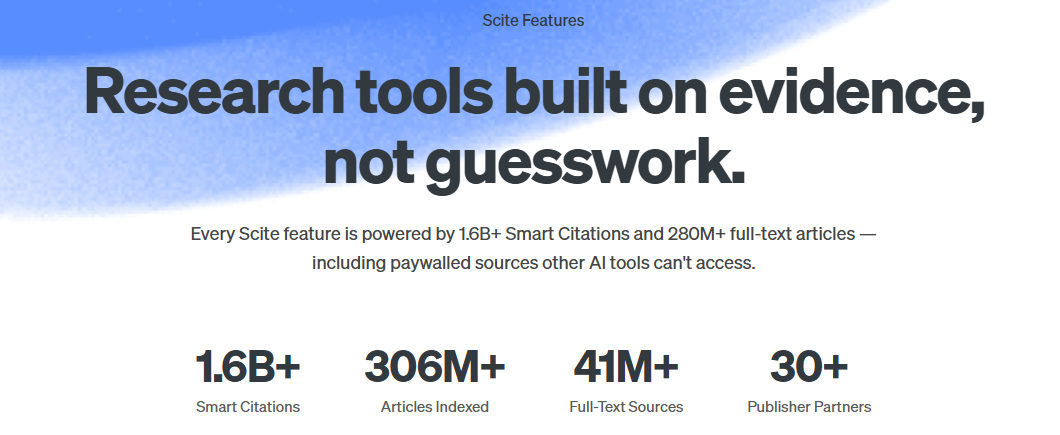
As an aquarist or amateur researcher, you've probably encountered countless forum threads filled with speculation, anecdotal evidence, and outright misinformation. How much CO2 is really safe for shrimp? What's the actual mechanism behind iron uptake in submerged macrophytes? Instead of relying on hearsay, you can query the scientific literature directly and get evidence-based answers—complete with citations, supporting or contrasting evidence, and full-text excerpts from peer-reviewed papers … all presented in an easy-to-understand format (if you request so).
This guide will walk you through connecting Zed to the Scite MCP server and running your first literature search. The entire setup takes about 5 minutes, and once it's done, you'll have a powerful research assistant at your fingertips.
2. Get the Scite MCP server URL
Note on DeepSeek: In this guide, I will be using the Chinese AI agent DeepSeek as my default AI agent. Its use is prohibited at some government institutions and universities (including Charles University in Prague), which is justified on the grounds of security risks. I have no idea whether the Chinese government is illegally monitoring all the data I might share with the AI, but honestly, I don't care. In fact, I'd actually welcome it if my amateur research could be of use to someone else. After all, I'm not doing anything secret. And to suspect one party (DeepSeek) of wrongdoing while being uncritically trusting of the other (ChatGPT, Claude, Gemini, Grok) strikes me as foolish. Besides, DeepSeek is several times cheaper than comparable commercial AI models. That's my explanation for why I have no problem using the Chinese DeepSeek in the field of AI.
Note on Scite's Price: While creating a Scite account is free, access to the article database via MCP requires a paid subscription. You can check the current pricing plans at scite.ai/pricing. The Basic plan offers 250 MCP credits per month per user for $20/month. That's not a lot of credits in practice (because a single prompt often "burns through" several credits at once*), but it's enough for occasional work with Scite MCP. If you're affiliated with a university or research library, check whether your institution already provides access to Scite—many libraries include it in their database subscriptions.
* For example, my eight prompts (see Section 12) used up 55 MCP credits, which works out to roughly ~7 MCP credits per prompt.
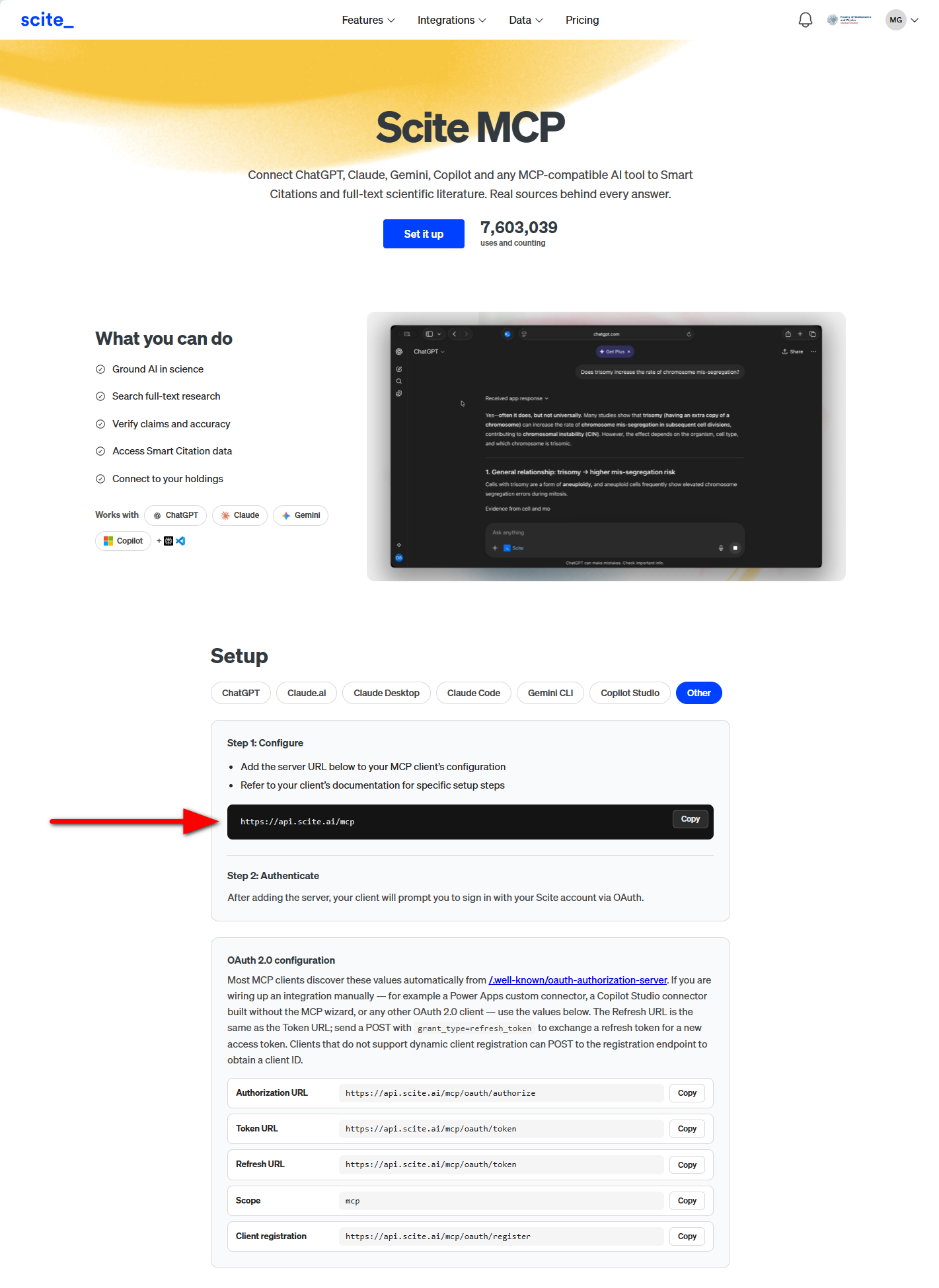
First, head over to scite.ai/mcp. On this page, you'll find the setup instructions for various MCP clients. Switch to the "Other" tab in the "Setup" section. Here you'll see the URL of the Scite MCP server:
https://api.scite.ai/mcp
Copy this URL—you'll need it in the next step. (If you don't already have a Scite account, you can create one at scite.ai.)
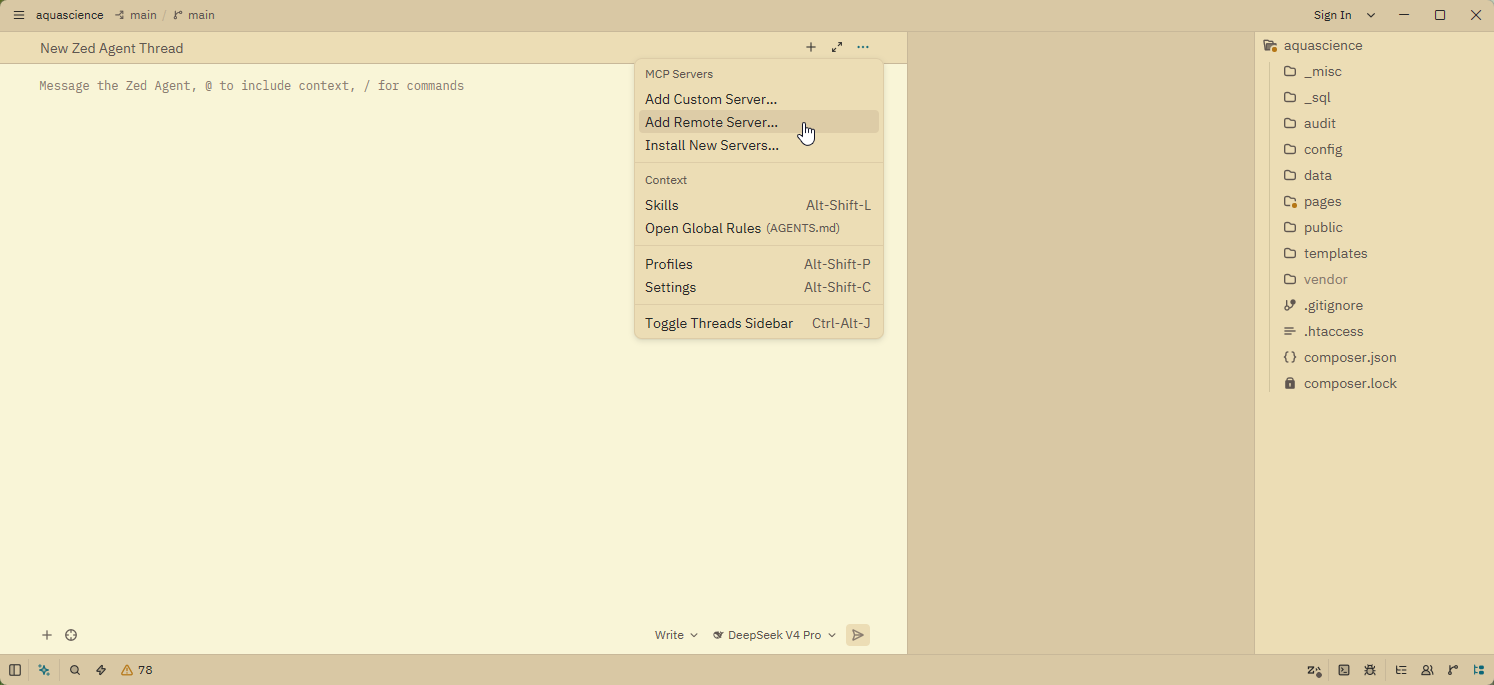
3. Open the Agent Menu and add a new MCP server
In Zed, open the Agent Menu by clicking the agent panel icon. From the dropdown, select "Add Remote Server…".
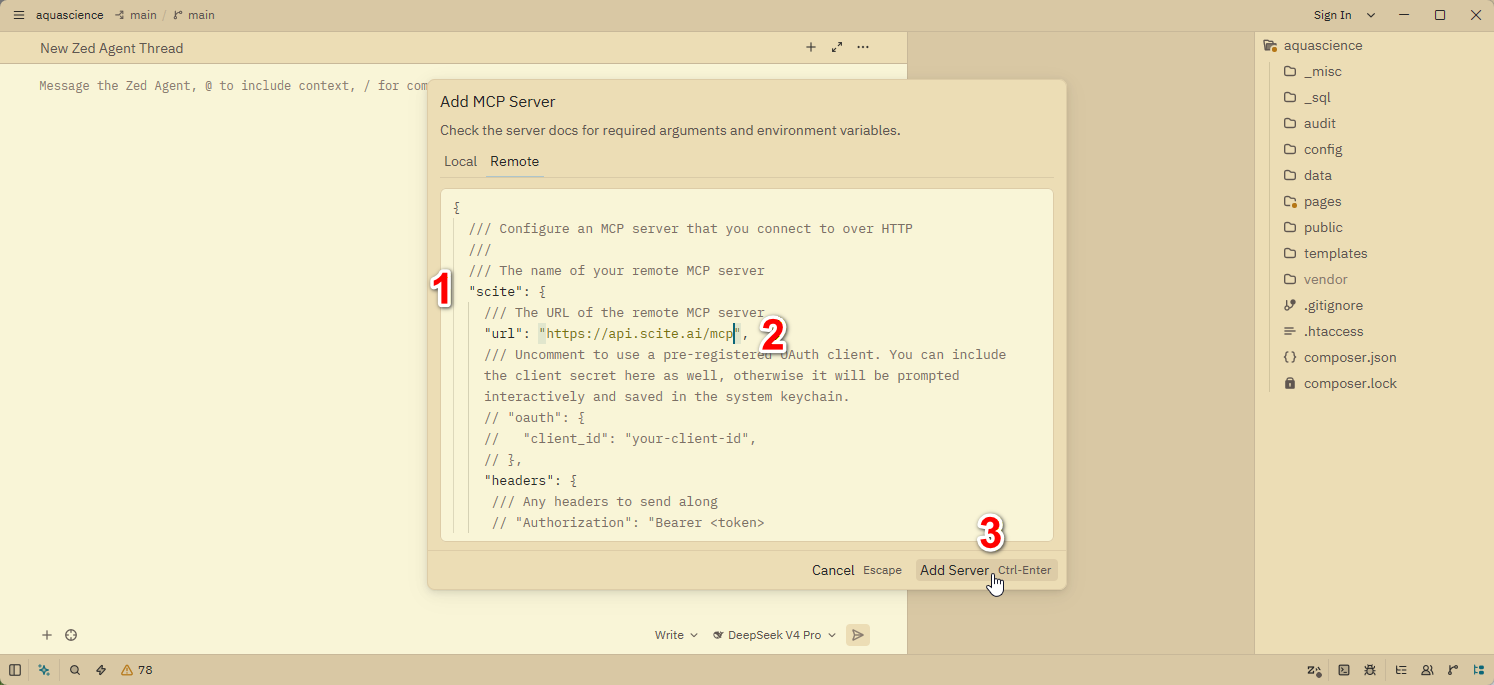
4. Configure the MCP server connection
A modal window titled "Add MCP Server" will appear. Make sure
the "Remote" tab is active. You'll see a JSON configuration
template. Replace the default server-name and url values with your own
— for the Scite MCP server URL use the value you copied in Step 2:
Before:
{
  /// Configure an MCP server that you connect to over HTTP
  ///
  /// The name of your remote MCP server
  "some-remote-server": {
    /// The URL of the remote MCP server
    "url": "https://example.com/mcp",
    /// Uncomment to use a pre-registered OAuth client...
    // "oauth": {
    //   "client_id": "your-client-id",
    // },
    "headers": {
     /// Any headers to send along
     // "Authorization": "Bearer <token>"
    }
  }
}
After (only the server-name and URL changes):
{
  /// Configure an MCP server that you connect to over HTTP
  ///
  /// The name of your remote MCP server
  "scite": {
    /// The URL of the remote MCP server
    "url": "https://api.scite.ai/mcp",
    /// Uncomment to use a pre-registered OAuth client...
    // "oauth": {
    //   "client_id": "your-client-id",
    // },
    "headers": {
     /// Any headers to send along
     // "Authorization": "Bearer <token>"
    }
  }
}
Once you've pasted the URL, click the "Add Server (Ctrl-Enter)" button at the bottom of the modal.
5. Authorize Zed to access your Scite account
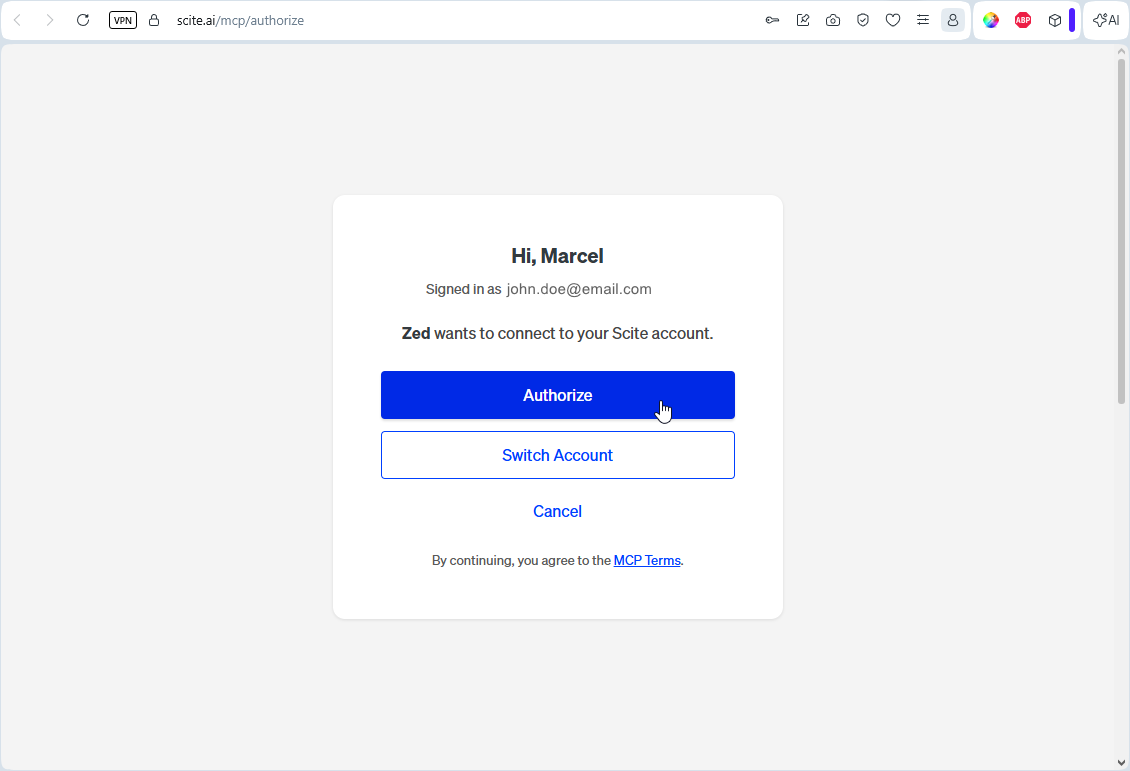
Zed will now open your browser and redirect you to scite.ai/mcp/authorize. This is where you grant Zed permission to use Scite's tools on your behalf. Click the "Authorize" button to proceed.
Note: If you're not already logged into your Scite account in the browser, you'll be prompted to log in first.
6. Confirm successful authorization
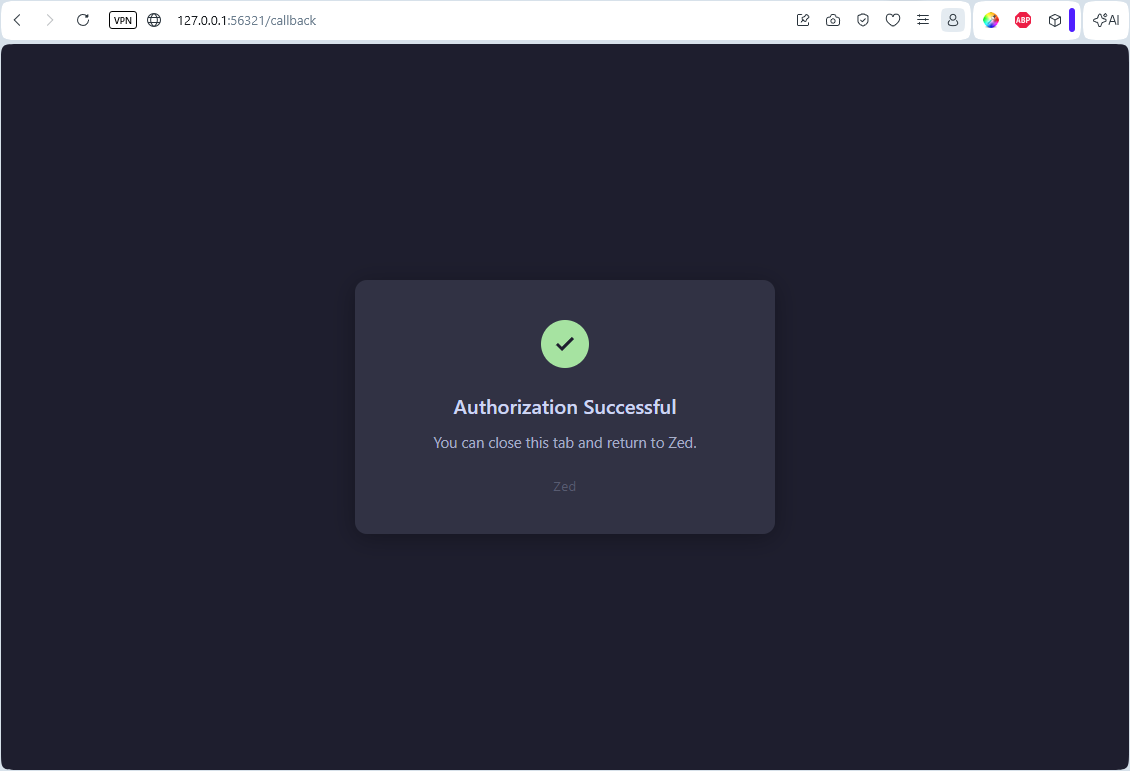
After clicking "Authorize", you should see a confirmation page with the message "Authorization Successful". This means Zed now has secure access to the Scite MCP server on your behalf. You can close this browser tab and return to Zed.
7. Dismiss the confirmation in Zed
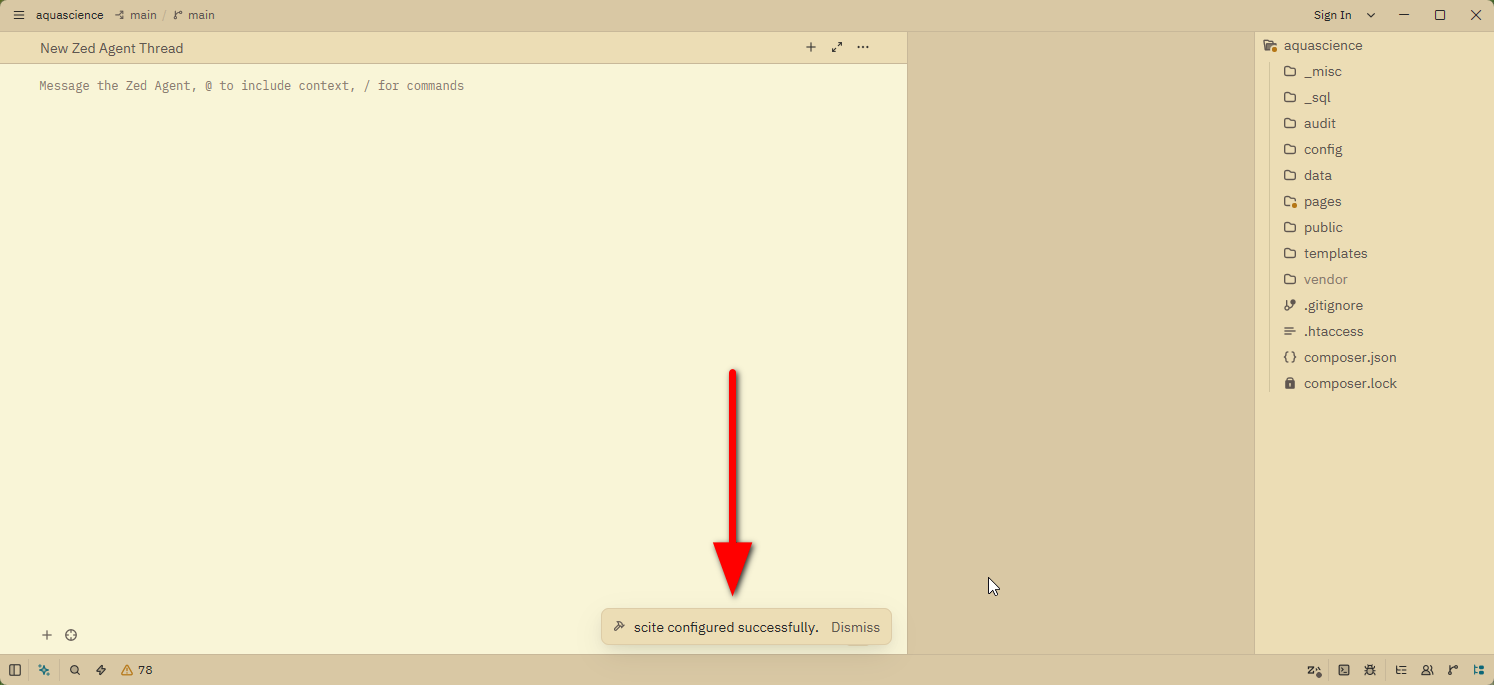
Back in Zed, you'll see a small notification in the bottom-right corner: "scite configured successfully". Click "Dismiss" to close it. Your Scite MCP server is now ready to use!
8. Explore server settings and available tools
To see what tools Scite provides—or to adjust its configuration—open the Agent Menu again and select "Settings".
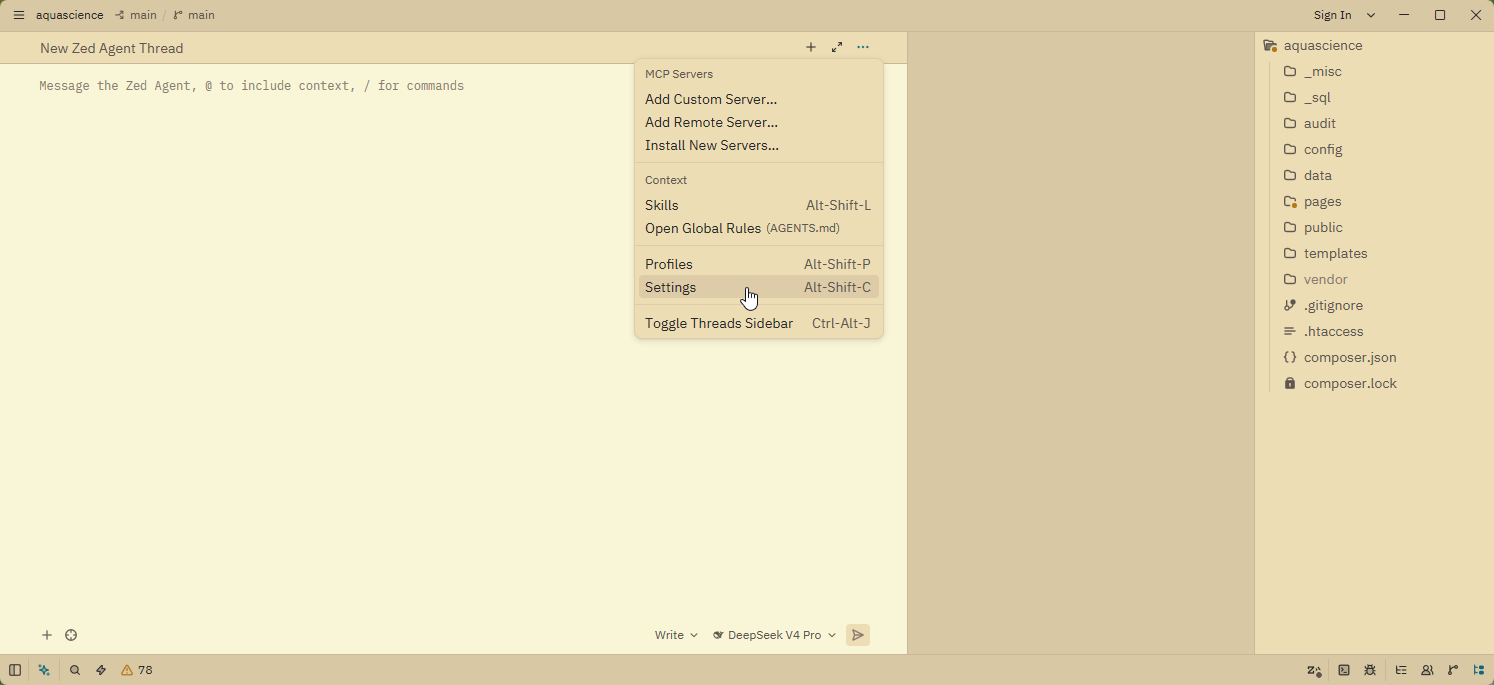
In the Settings window, scroll down to the "Model Context Protocol (MCP) Servers" section. You'll see "scite" listed there. Click the gear icon ("Configure MCP Server") next to it.
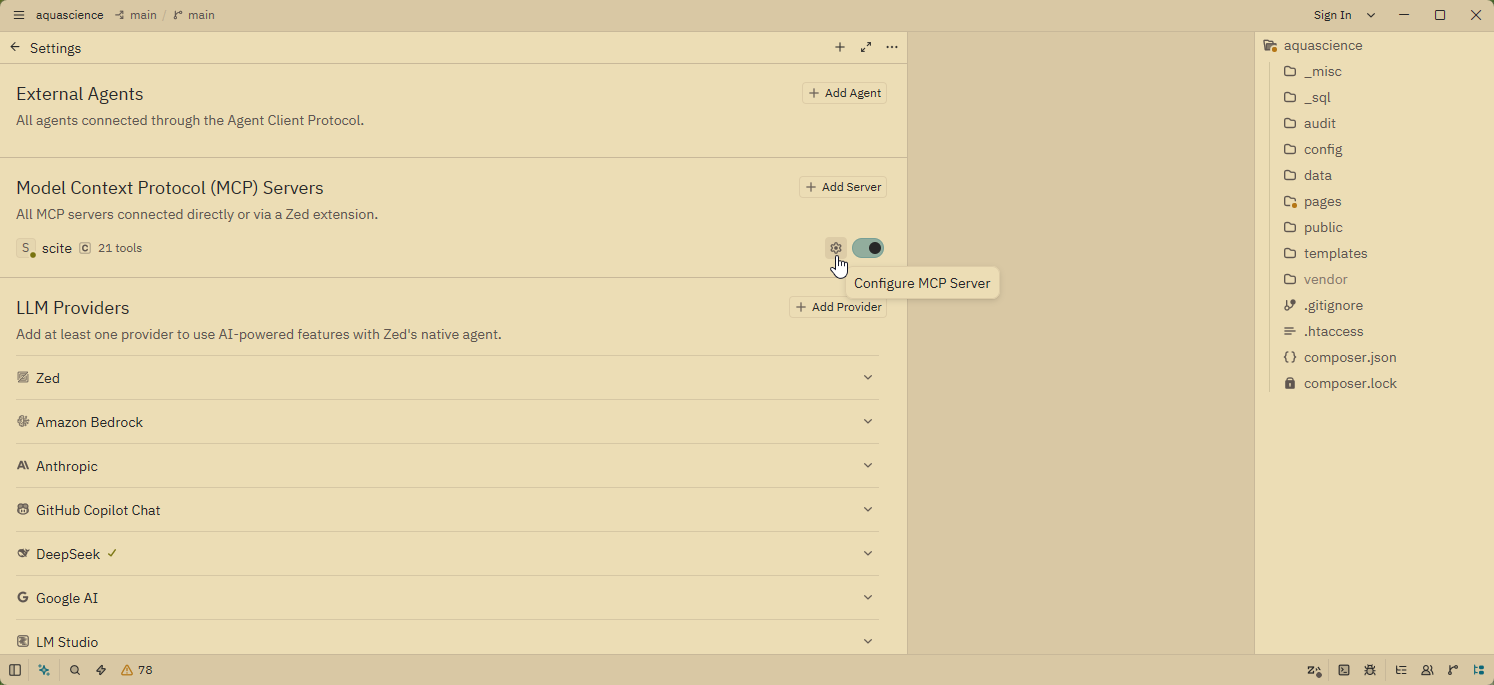
A dropdown menu will appear with several options: Configure Server, View Tools, Log Out, and Uninstall.
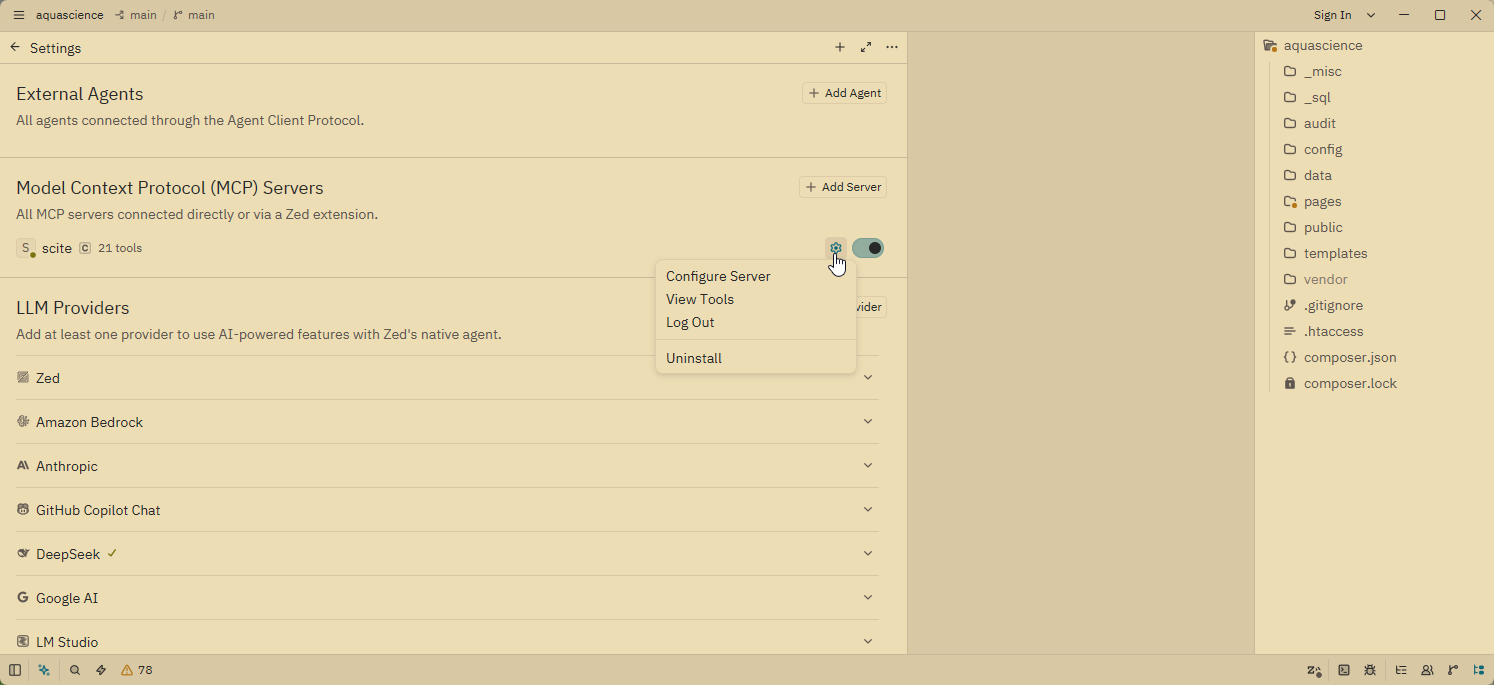
9. View the available Scite tools
Click "View Tools" to see the full list of tools that the Scite MCP server exposes to Zed's AI agent.
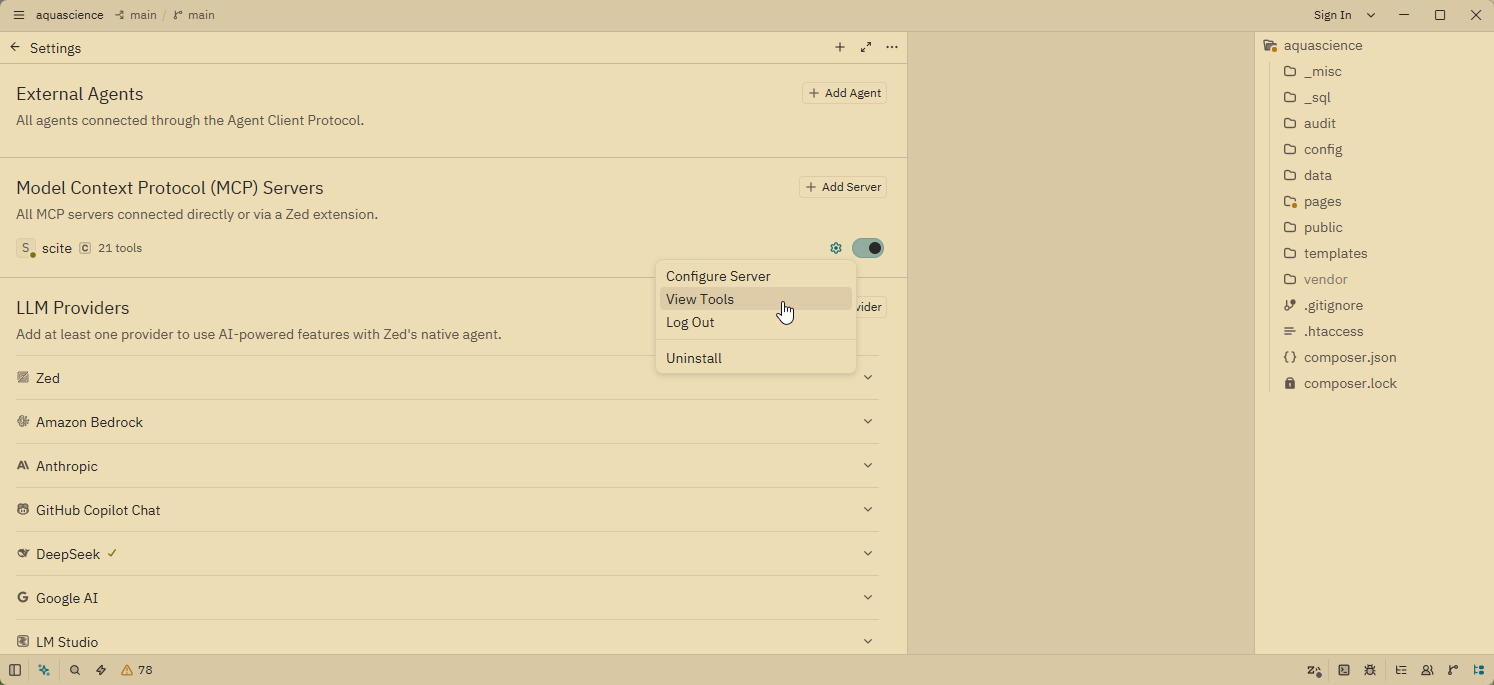
You'll see several powerful tools, including search_literature—which is the primary tool you'll use for searching scientific papers. Other tools include search_grants (research grants), search_clinical_trials, search_device510k (FDA medical device clearances), search_patents, and more.
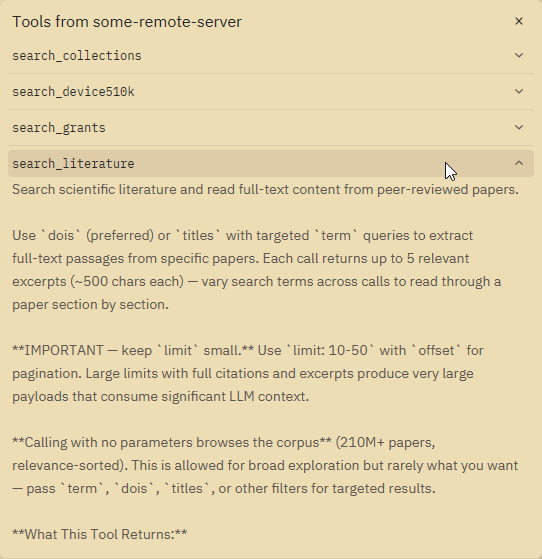
10. Understand the search_literature tool
Clicking on search_literature reveals its full documentation, including all available parameters. Here are the most important ones you'll use regularly:
-
term — Your search query. Supports Boolean operators
(
AND,OR,NOT), phrase search ("exact phrase"), and field-specific filters (title:,abstract:,author:,journal:). - dois — Filter results to specific papers by their DOI (Digital Object Identifier). This is the most precise way to retrieve a known paper.
- year, date_from, date_to — Narrow results to a specific time range.
-
paper_type — Filter by publication type
(e.g.,
"Article","Review","Clinical Trial","Meta-Analysis"). - supporting_from / contrasting_from — Filter papers by the number of supporting or contrasting citations they've received. This is incredibly useful for finding well-validated (or hotly debated) research.
- has_retraction, has_correction, has_erratum — Filter for papers with editorial notices (retractions, corrections, errata).
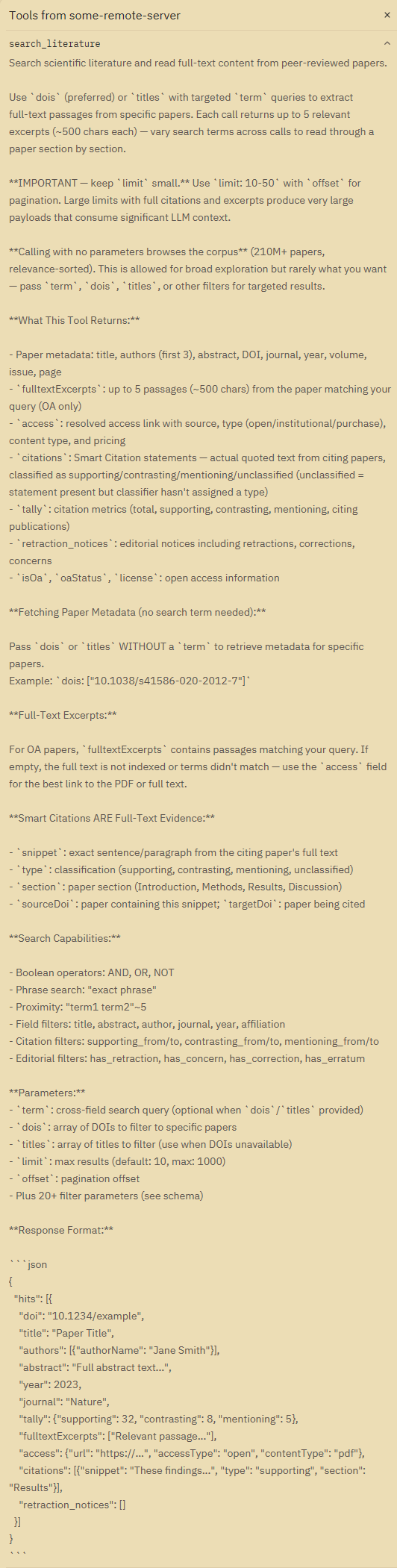
The tool returns rich metadata for each paper: title, authors, abstract, journal, year, citation tallies (supporting/contrasting/mentioning), full-text excerpts from open-access papers, and—most importantly—Smart Citations: actual quoted sentences from citing papers, classified as supporting, contrasting, or mentioning the cited work. This lets you quickly gauge how a paper's findings have been received by the scientific community.
11. Verify the connection works
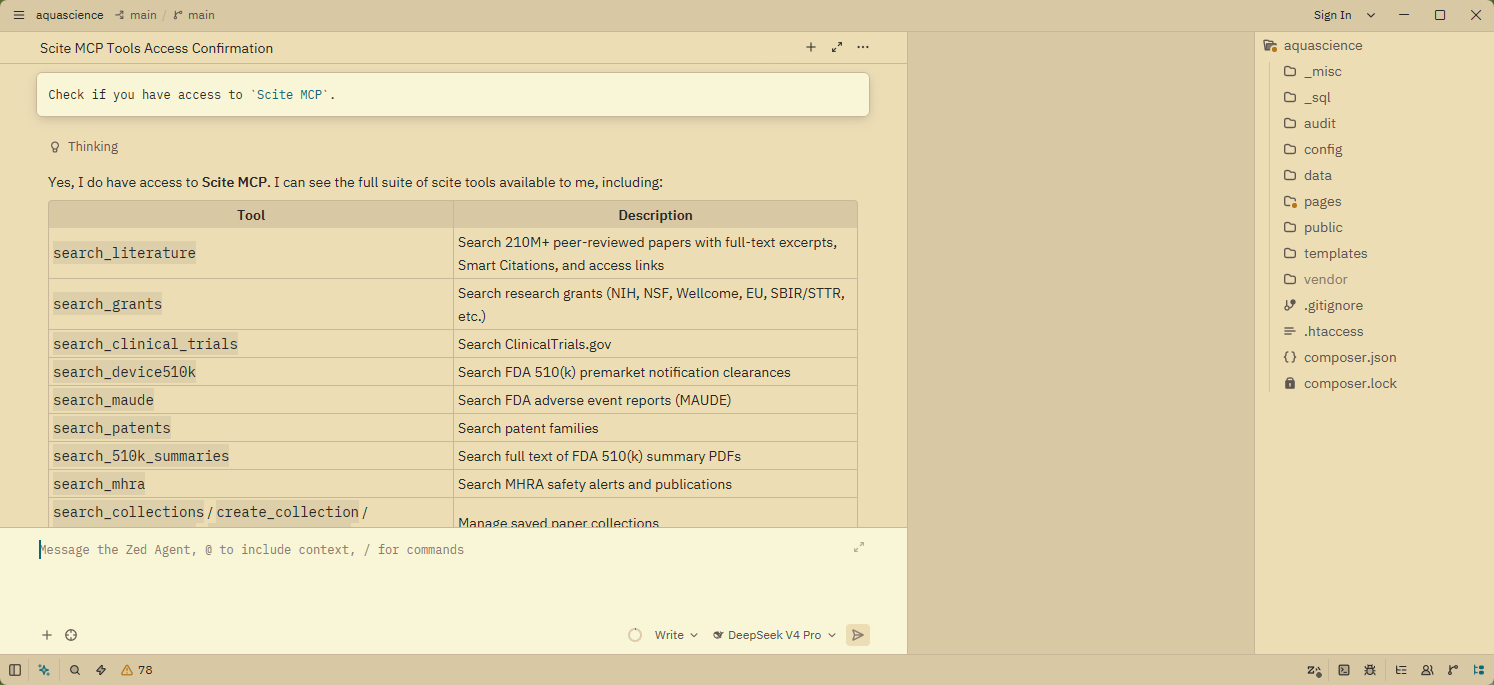
Before diving into real research, it's a good idea to confirm that the AI agent can actually access the Scite MCP tools. In the agent panel, type a simple verification prompt:
Check if you have access to `Scite MCP`.
The agent should respond confirming that it now has access to the Scite MCP server and can use its tools—including search_literature.
12. Start your first literature search
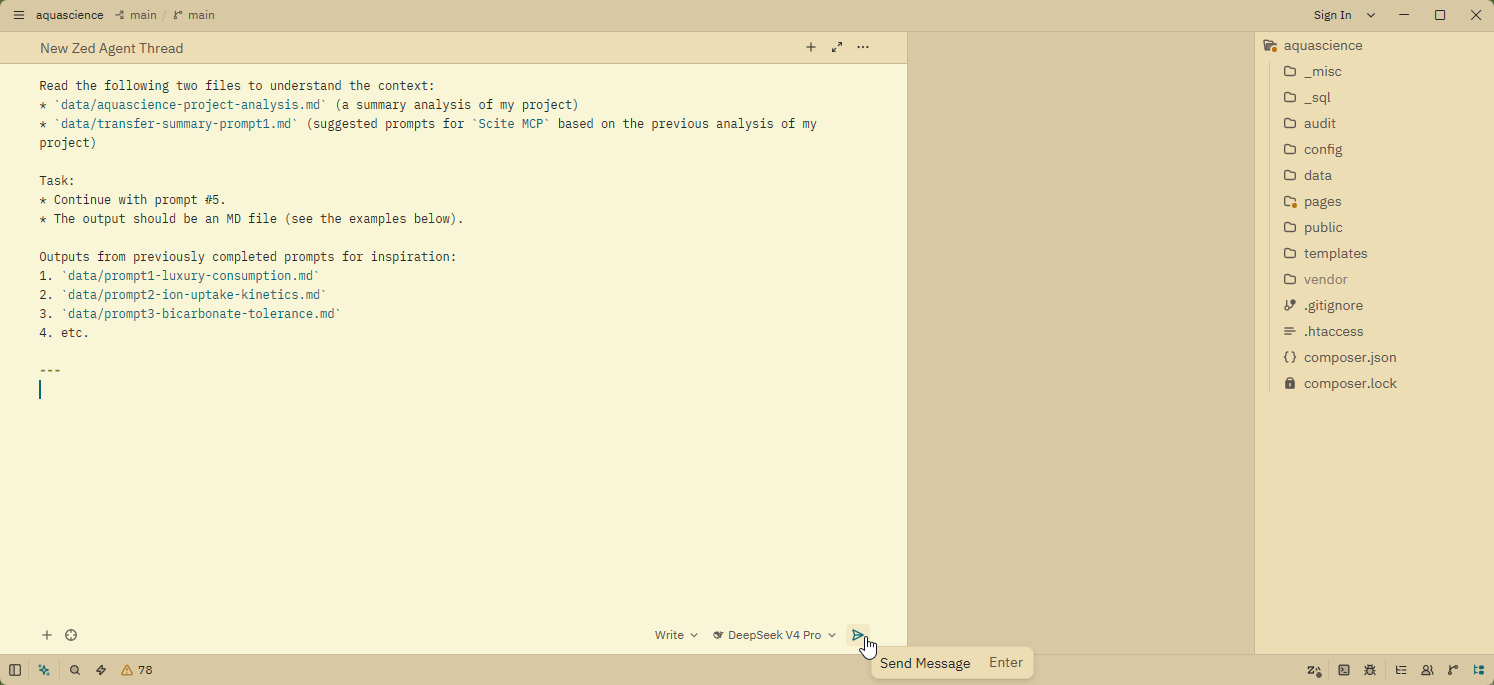
Now for the exciting part. You can give the AI agent a research task that combines your local project context with external scientific literature. Here's a real-world example of a prompt I used to research iron in an acidic, oxygen-rich environment without organic ligands:
Example result:
- 📒 Iron in an acidic, oxic environment without organic ligands
The key pattern is:
- Provide context
- Tell the agent which files to read first (your project data, previous analyses, etc.)
- Give a clear task
- Specify what you want the agent to do—search for papers on a specific topic, compare findings, extract key data points, etc.
- Define the output format
- Request a Markdown file, a structured table, or a summary in a specific format.
The AI agent will use search_literature (and other Scite tools as needed) to find relevant papers, read their abstracts and full-text excerpts, evaluate the strength of evidence via Smart Citations, and compile the findings into a well-structured document—all within seconds.
13. Tips for effective research with Scite + Zed
-
Use specific scientific terminology in your search queries.
Instead of "CO2 and plants", try
"inorganic carbon uptake" AND "submerged macrophyte". The more precise your terms, the more relevant your results. - Leverage Smart Citations to distinguish well-supported findings from controversial ones. A paper with 50+ supporting citations and few contrasting ones is likely solid; a paper with many contrasting citations may represent a debated hypothesis.
-
Filter by paper type.
For a broad overview of a topic, search for
paper_type: "Review"or"Meta-Analysis". For the latest primary research, restrict the date range and search forpaper_type: "Article". -
Check for retractions.
Use
has_retraction: trueto identify papers that have been retracted—especially important if you're building on existing research. - Combine local context with external search. Have the agent read your project files first, then search the literature for papers that address gaps or validate your approach. This is where the agentic mode truly shines.
- Start with a cheaper model for simple literature lookups (e.g., DeepSeek v4 Flash), and switch to a more capable model only when you need deeper analysis or cross-referencing across many papers. See my tool TokenMetrics AI dashboard for a detailed cost comparison.
Note: An AI agent can easily handle all of this for you.
14. Final thoughts
The combination of Zed's agent mode and Scite's MCP server transforms your editor into a legitimate research workstation. Instead of spending hours manually searching through Google Scholar, downloading PDFs, and cross-referencing citations, you can delegate the heavy lifting to an AI agent that reads, evaluates, and synthesizes scientific literature on your behalf.
For the amateur researcher or the scientifically curious aquarist, this is a game-changer. It lowers the barrier between having a question and finding an evidence-based answer. No more relying on forum speculation or outdated hobbyist lore—you can now tap directly into the world's scientific knowledge, guided by AI that helps you separate signal from noise.
Happy researching!
Zed + scite MCP gives you direct access to 210M+ scientific papers with Smart Citations that classify supporting vs. contrasting evidence. The entire setup takes about 5 minutes — and you can query everything from your editor using plain language prompts.