Using AI agents
with Zed
A practical guide to setting up AI-powered coding with the Zed editor — from API keys to cost tracking.
⚠️ Before you start: This guide uses DeepSeek models among others. The Czech National Cyber and Information Security Agency (NÚKIB) issued an official warning about their products in September 2025. Before you sign up and enter an API key, please read the → threat analysis & comparison with competitors — it's short, easy to follow, and may save you trouble down the line.
1. Sign up with your chosen AI provider

2. Purchase credit

3. Generate an API key
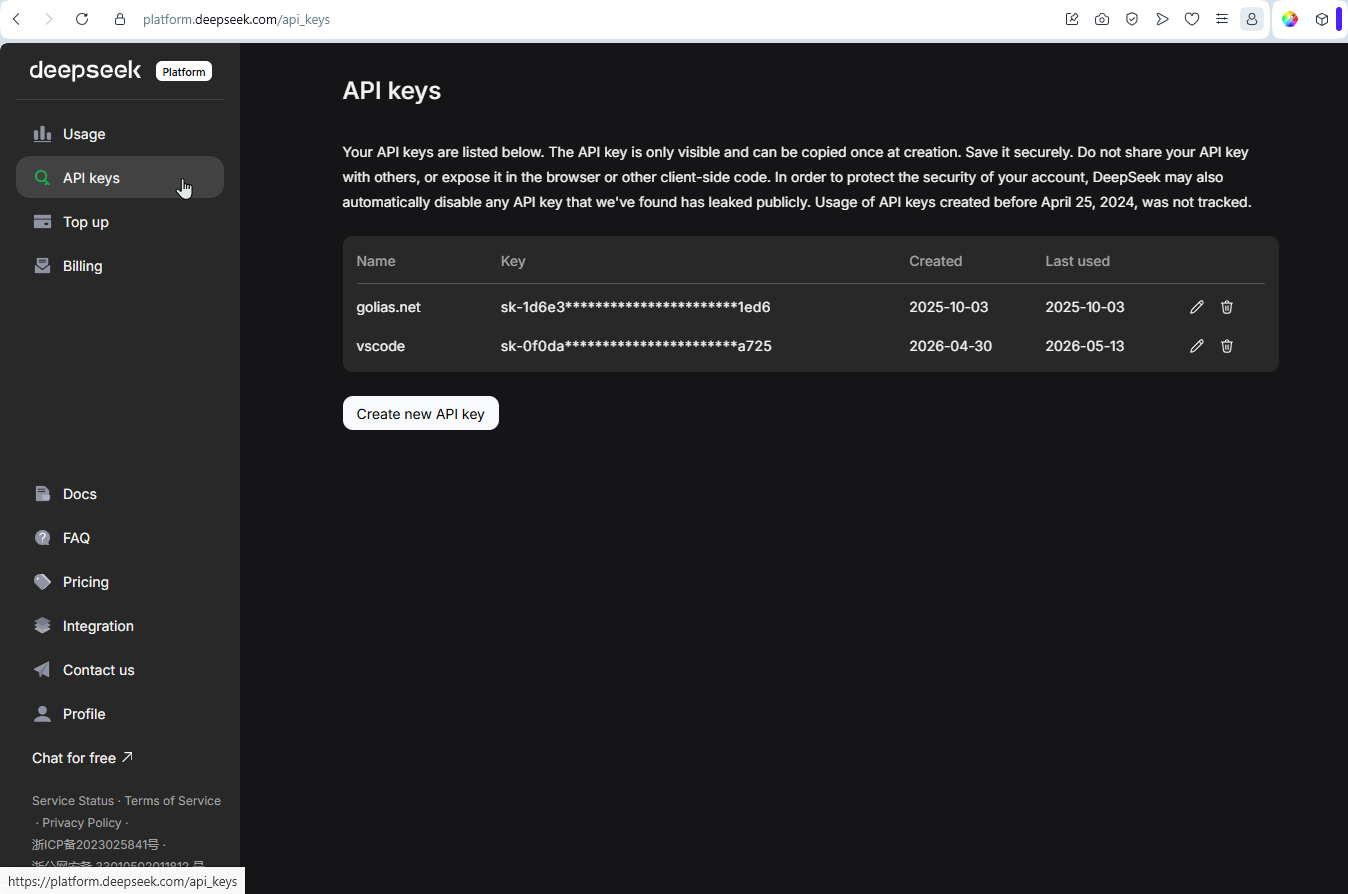
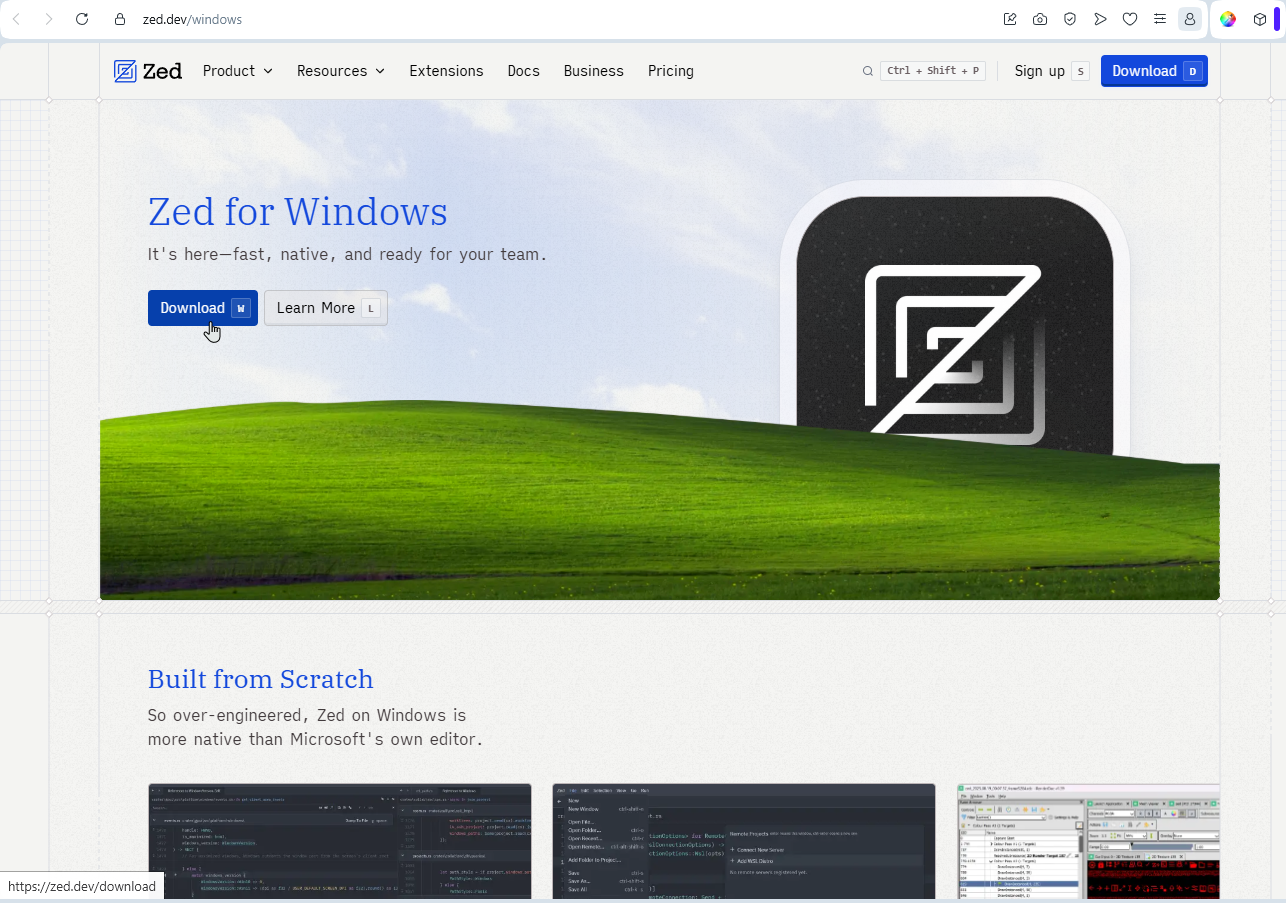
4. Install your chosen editor, which you will use to communicate with the AI
I've tried the following editors:
VS Code with the Kilo Code (or Cline) extension
VS Code is a fairly robust program, and if you don't plan to use its built-in integration with GitHub, then it's probably pointless to use it for this purpose. Its interface is unnecessarily complex (similar to Adobe Photoshop) for the average user, but on the other hand, it requires the least user intervention because it handles most of the tasks involved in communicating with the AI agent for you. However, what is advantageous in terms of user-friendliness is not as advantageous in terms of cost. This method of communicating with AI is, in fact, the most expensive of all the options mentioned. Not by a dramatic margin, but other programs can communicate with AI more efficiently and manage its memory (cache) and the prompt context better.
Aider (CLI)
This is a truly "minimalistic" and "hardcore" solution that uses a terminal to communicate with the AI agent. It isn't very user-friendly, and it's difficult to navigate the agent's output, but it offers extensive configuration options. It uses its own project indexing, which can save costs. However, I wouldn't recommend it for the average user. My main issue with this editor was that it only works with and modifies files that you explicitly specify. So if you're performing an analysis where you don't know in advance which files might be affected or which files will need to be modified, you'll likely be dissatisfied with the result.
Zed
The best balance between minimalism and cost-effectiveness versus user-friendliness. It's a lightweight editor that supports an agent-based approach to working with AI (which is exactly what's most interesting about AI right now). The Zed editor seems to be the best solution for my needs.
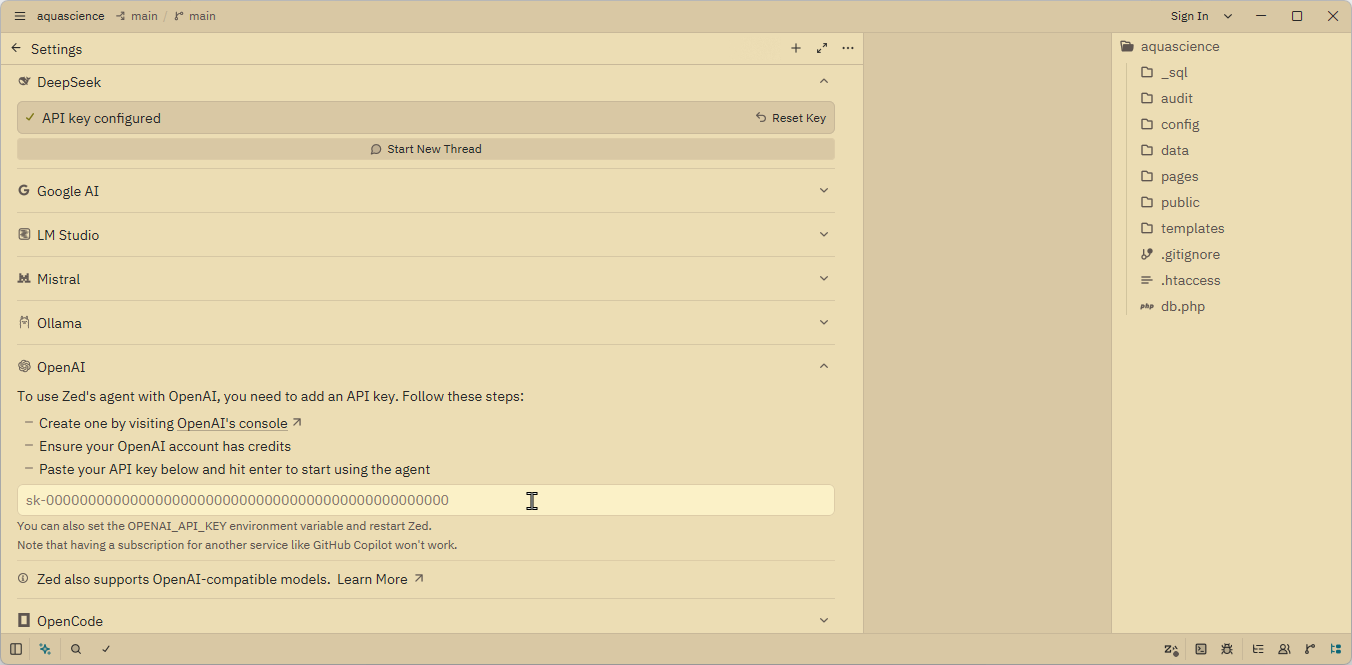
5. Enter your API key into the editor
The Zed editor interface where you configure LLM providers. You can access this configuration interface using the Alt-Shift-C keyboard shortcut. After clicking on your provider, you'll see a field where you need to paste your API key (see Step 3). Of course, you can also enter multiple API keys for different providers here, which will allow you to use various AI models (e.g., DeepSeek v4 Pro and Claude Sonnet 4.6).
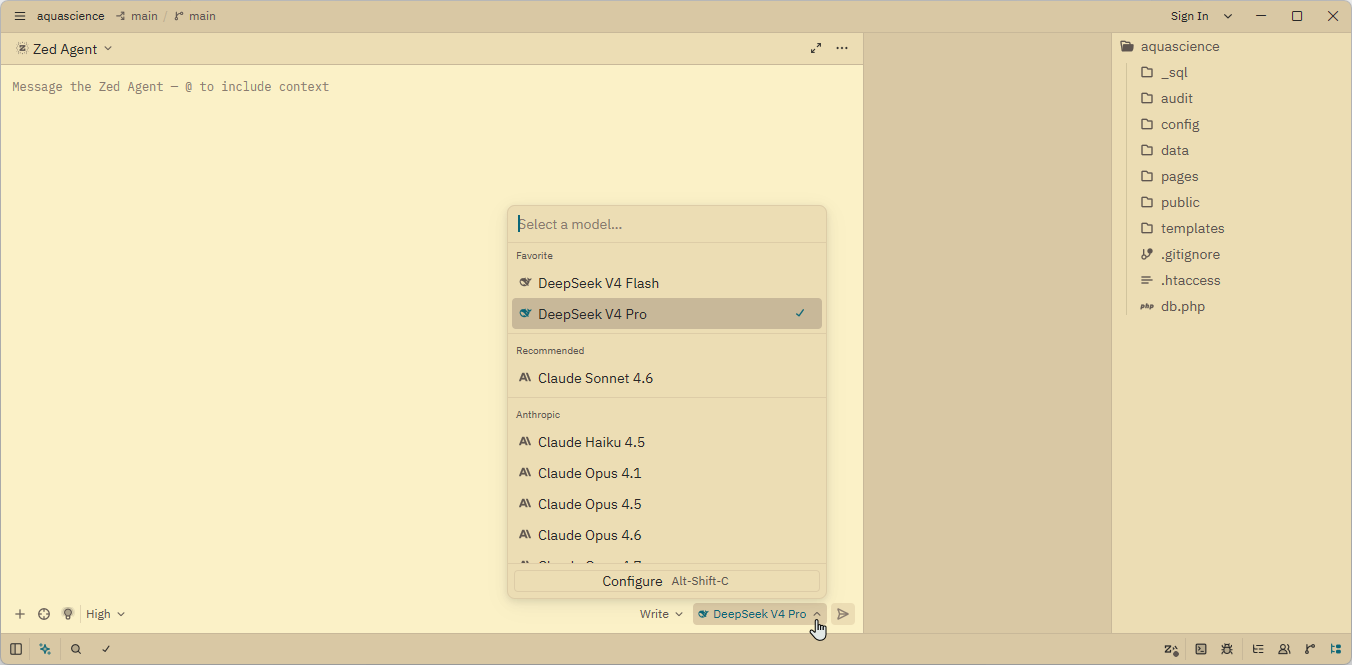
6. Select an AI model
After entering your API key (or keys), you can select a specific agent at the bottom of the agent mode window to use for communicating with the AI. You can switch between models at any time during the conversation (i.e., between different prompts). For example, if you know (or suspect) that the answer to your query does not require any complex calculations or analysis of a large number of files, you can choose the more affordable DeepSeek v4 Flash. For more complex tasks, you can select the more suitable DeepSeek v4 Pro (or Claude Sonnet 4.6).
Important note regarding costs: The difference between DeepSeek v4 Pro and Claude Sonnet 4.6 (or GPT-5.4) is enormous in terms of "burned tokens" and the associated costs (see TokenMetrics AI Dashboard)! DeepSeek is (1) much more memory-efficient, which can save you up to 90% in costs compared to other comparable models; (2) non-commercial (it is open-source), so it's not profit-driven; and, moreover, (3) it does not impose such dramatic restrictions on communication traffic as other providers do. For this reason, the Chinese DeepSeek essentially has no competition. In terms of quality, in my opinion, it is on par with Claude Sonnet 4.6, which is currently considered the gold standard in the field of agentic tasks.
For comparison: A relatively simple task I assigned to the Claude Sonnet 4.6 model—which involved editing two files (scripts) in my project—cost me $3.93 and consumed a total of 3 million tokens. The identical task I assigned to the DeepSeek v4 Pro model for comparison cost me just $0.04 with 1.5M token consumption—a difference of about 100 times. Furthermore, while the task took about 20 minutes to complete with DeepSeek, it took over an hour with Claude Sonnet because the agent kept getting paused due to various traffic restrictions (e.g., max 'tokens per minute' limit or max 'requests per minute' limit).
7. Start communicating
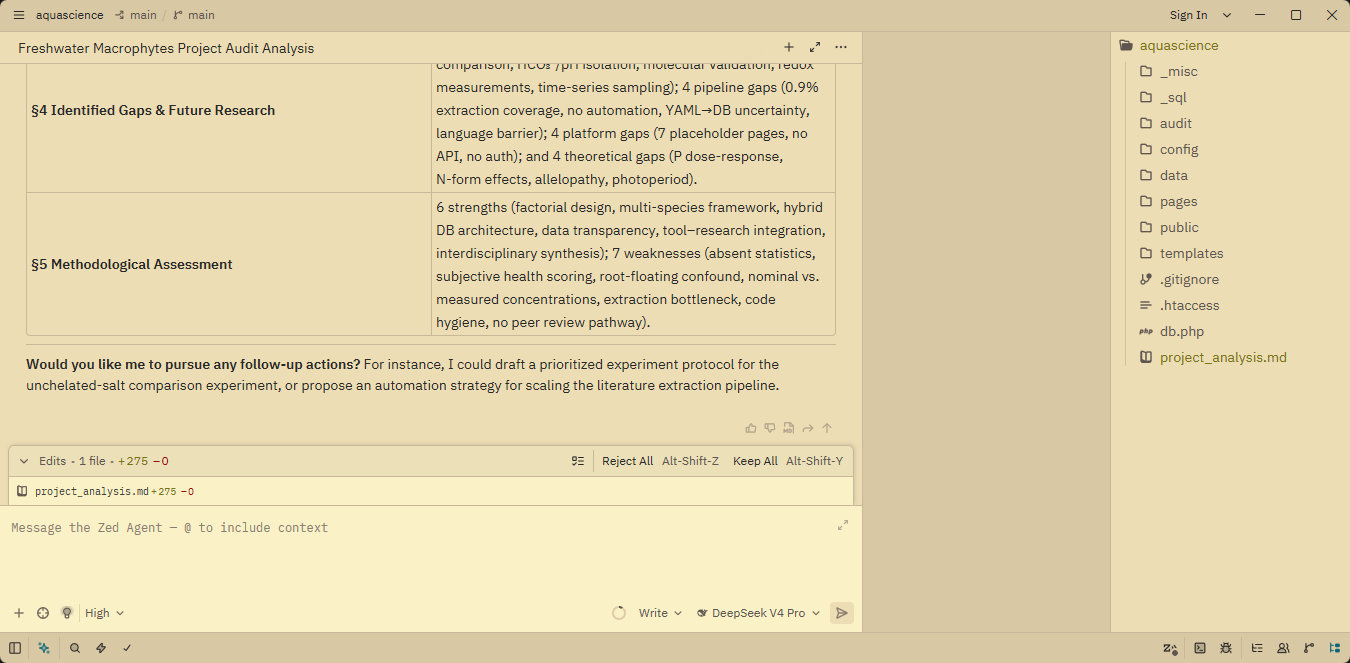
8. Track expenses
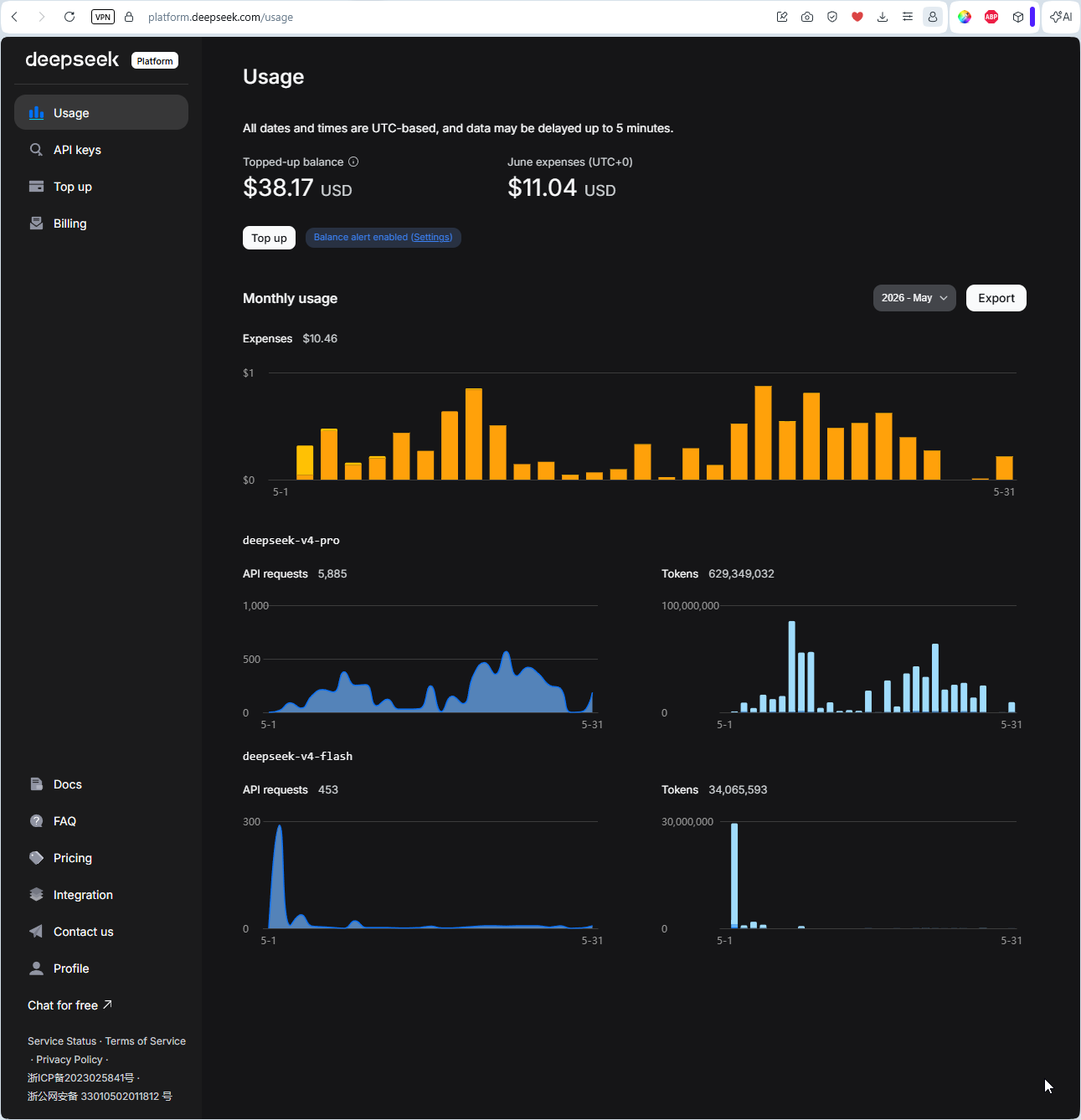
Be sure to keep a close eye on your costs on the AI provider's website, as your expenses can rise very quickly—especially with commercial AI models (like Claude or GPT). Since using AI models for more complex tasks (in what's known as "agentic mode") isn't exactly cheap, I recommend using them judiciously.
DeepSeek is much more memory-efficient, non-commercial, and significantly cheaper—up to 100× less expensive than comparable commercial models like Claude Sonnet. The Zed editor provides the best balance of minimalism, cost-effectiveness, and user-friendliness for agentic AI work.